Image to Pixel Art Converter

Turn any picture into pixel art instantly, right in your browser.

Upload an image and adjust the pixel size to get the look you want, then apply a retro palette like DMG or NES if you want that classic console color style.

No uploads to a server. No sign-up. Completely free.
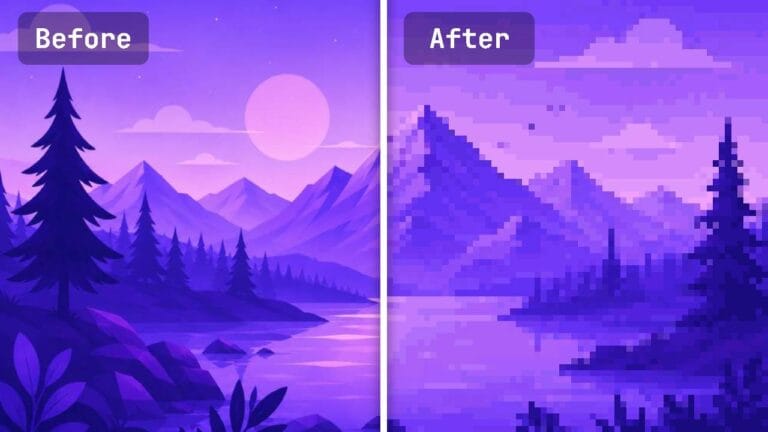
An example image of before and after applying pixel art
Upload an image, or try: , ,

Drop an image here

or click to browse

PNG · JPG · WEBP · GIF

8
Full
0
0
0

What Is Pixel Art?

Pixel art is digital art made up of small visible squares of color, as opposed to smooth shades of color.

Pixel art was developed for old video game consoles of the 1980s and 90s. Because of the limited number of colors available and the small number of pixels on the screen, artists had to work in blocks and draw games pixel by pixel.

Most modern screens are able to show detailed images, but pixel art is still highly popular because of its unique, retro feel.

Why Should You Use Our Image to Pixel Art Converter?

You should use our image to pixel art converter because it’s free, respects your privacy, and provides more features.

Privacy-First

This tool runs entirely in your browser, so your images are never uploaded to the server.

Free to Use

Convert as many images as you like, for free, and without watermarks on your downloads.

No Account Needed

You can use our pixel art converter without creating an account. So we don’t store personal information.

Multiple Formats

It supports all image formats, and exports your pixelated artwork as PNG, JPEG, or WebP.

Adjustable Pixels

Control how chunky or fine the pixel art looks and whether it will have hard-edged pixels or a blended look.

Color Palettes

Fine-tune the image’s brightness, contrast, and saturation or apply a specific color palette.

How to Use This Image Pixelator

1. Upload your picture

Drag and drop your image into the tool, or click to browse your files.

2. Set the pixel size

Drag the slider to the right to control how chunky or fine the pixel art looks.

3. Adjust the look

Pick sharp or smooth sampling and fine-tune brightness, contrast, and saturation. Or apply a palette like DMG or grayscale if you want.

4. Download your image

Finally, choose your format (PNG, JPEG, or WebP) at the pixel grid size you want and click Download.

What You Can Do with Our Image to Pixel Art Converter

Game sprites and assets

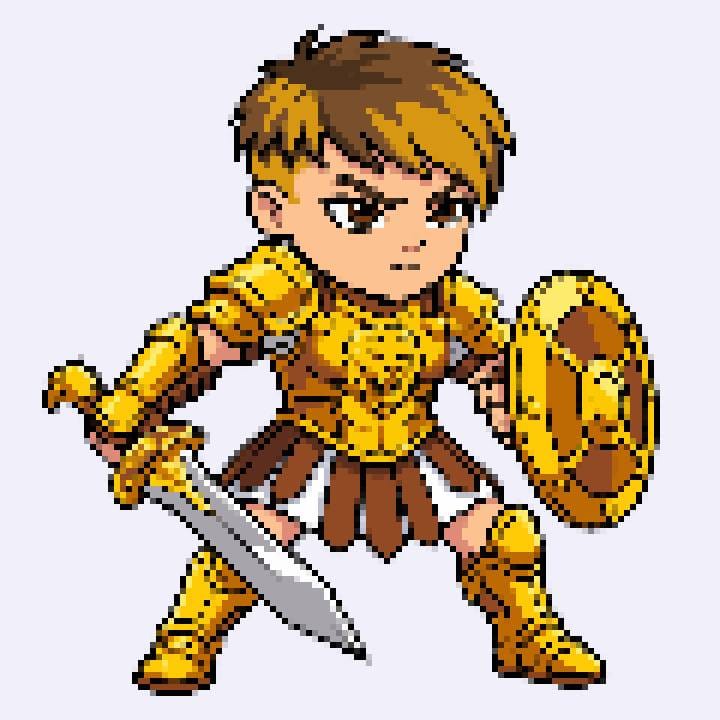
Convert a real photo or illustration into a stunning pixel art asset that you can use in your 8-bit game.
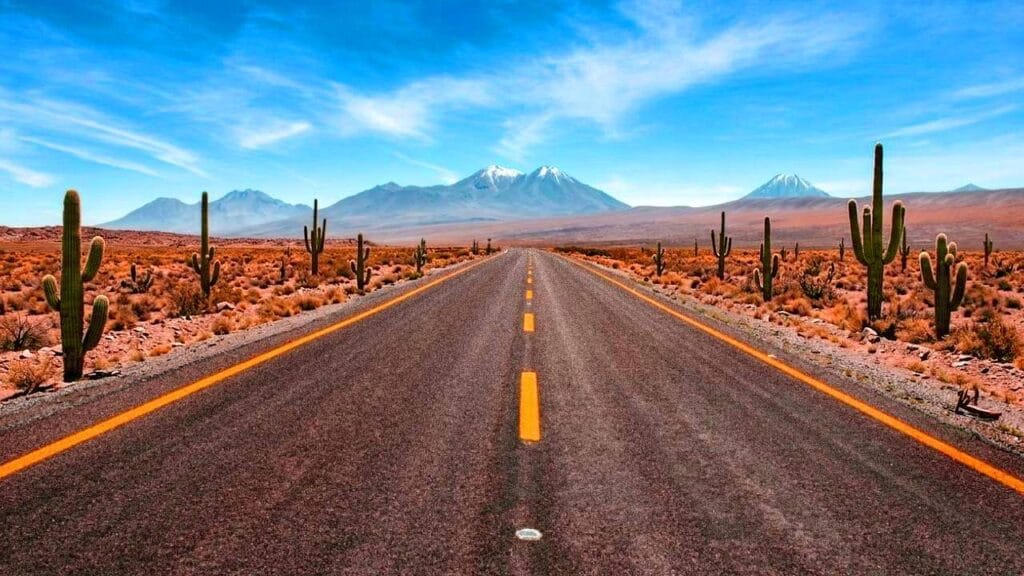
Desert road with cacti and mountains, original photo
Original
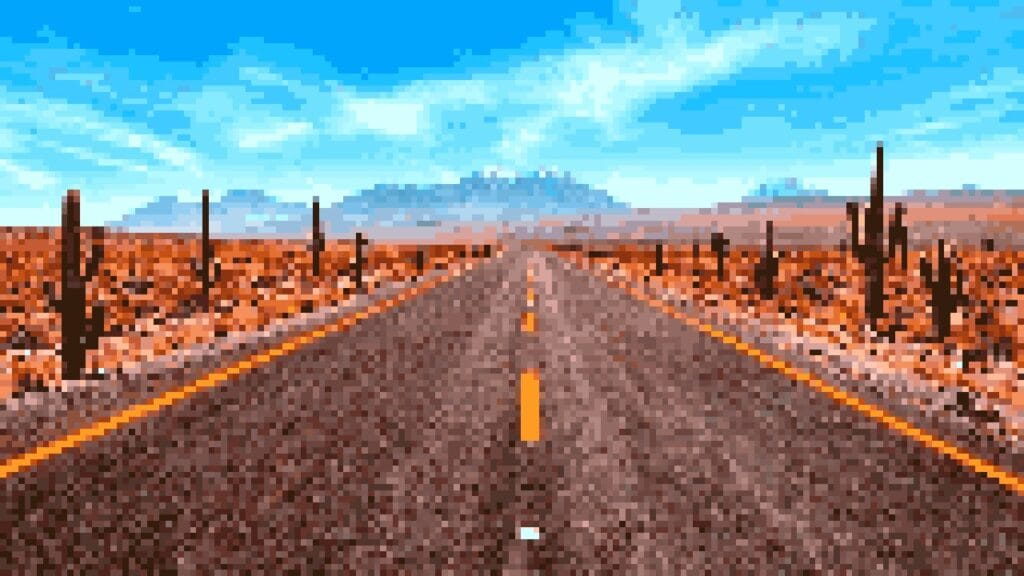
Same desert road converted to pixel art background
Pixel art
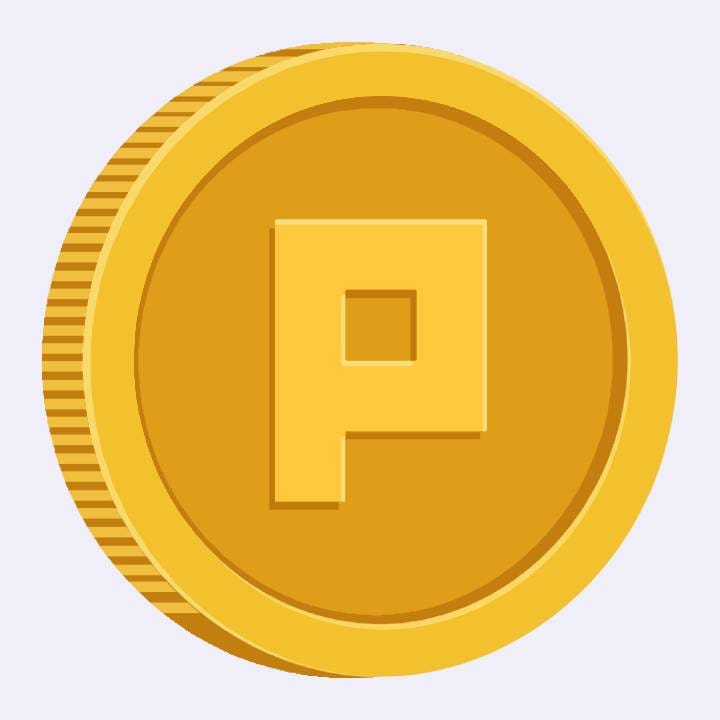
Coin illustration, original image
Original
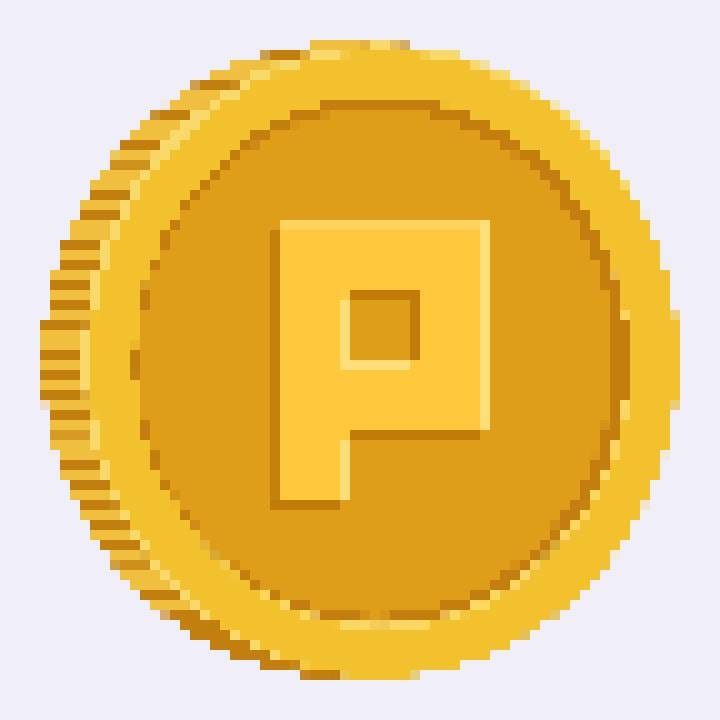
Coin illustration converted to pixel art with a fine 10px pixel size
10px
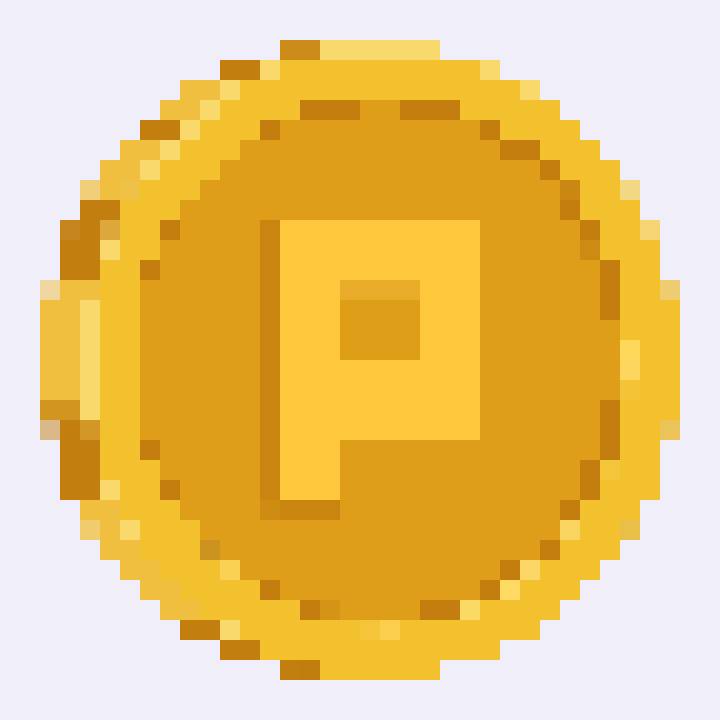
Coin illustration converted to pixel art with a chunky 20px pixel size
20px
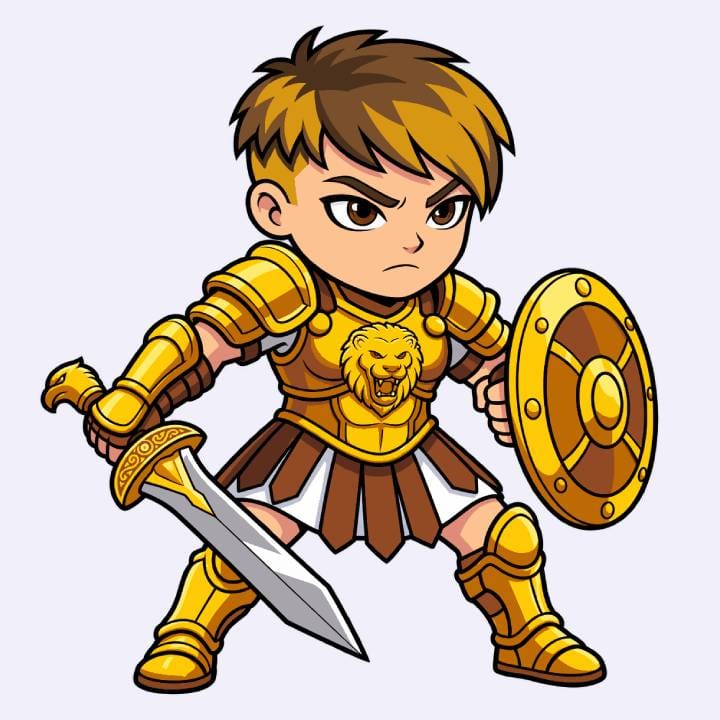
Knight character illustration, original image
Original
Knight character converted to pixel art game sprite
Pixel art

Profile pictures and avatars

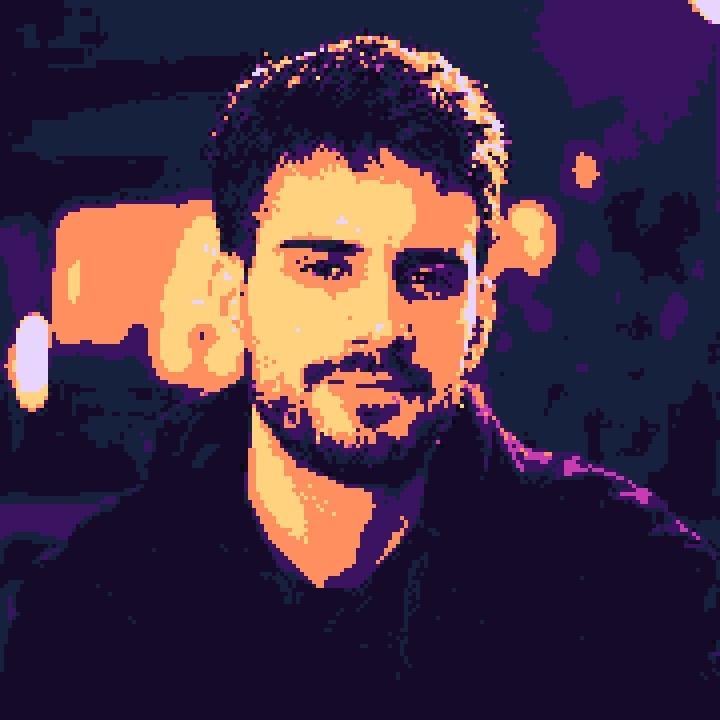
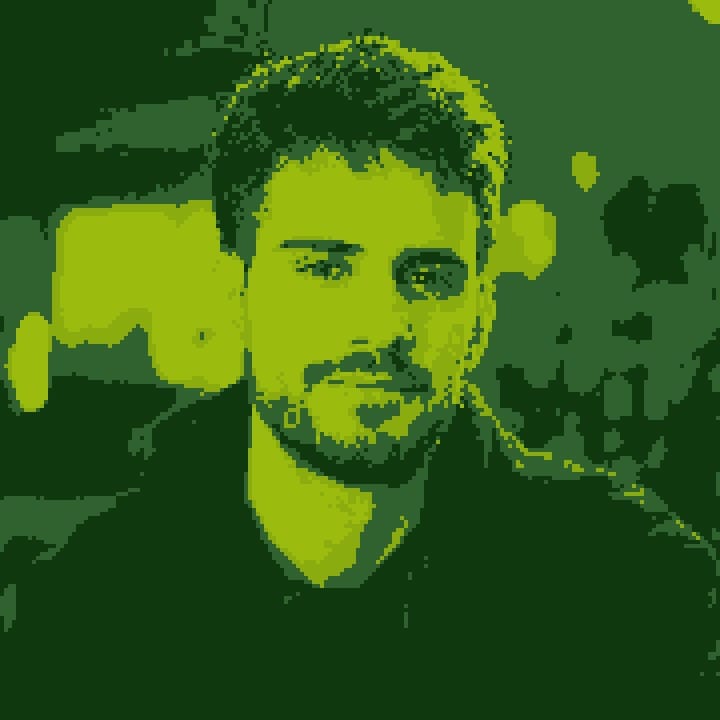
Turn your photo into pixel art and use it as your profile picture on social media or in gaming communities.

Profile photo before conversion to pixel art
Original
Profile picture converted to pixel art with
Pixel art
Retro
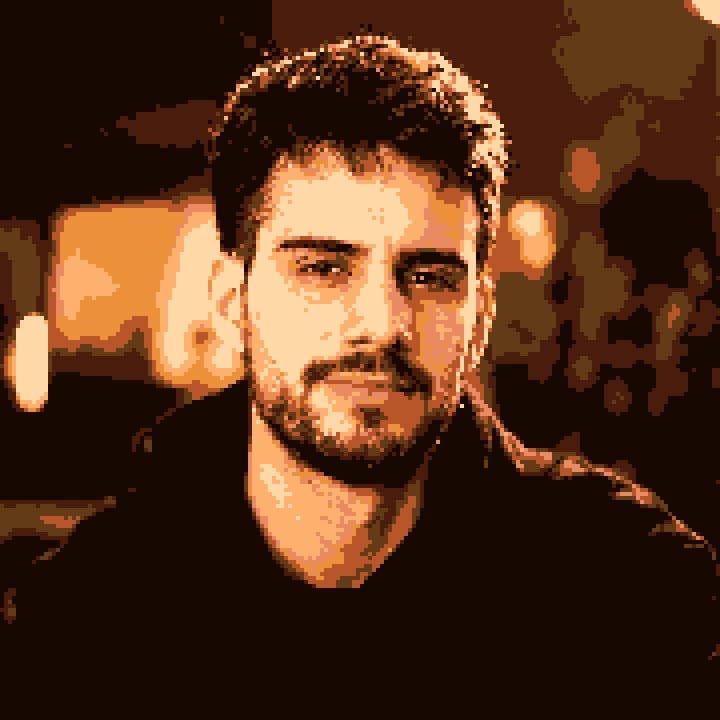
Profile picture converted to pixel art with a DMG color palette
DMG

Custom pixel portraits

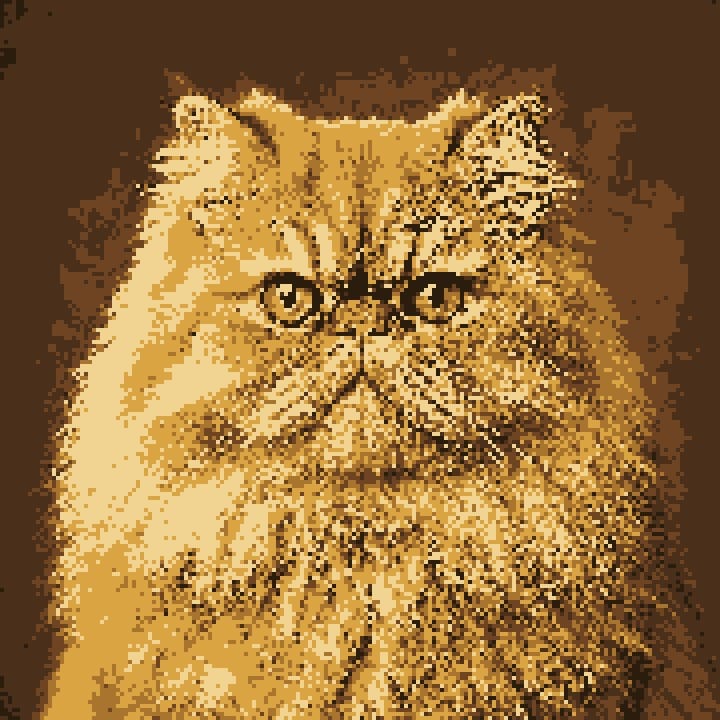
Turn a photo of a pet, friend, or family member into a pixel art portrait for gifts, prints, or stickers.
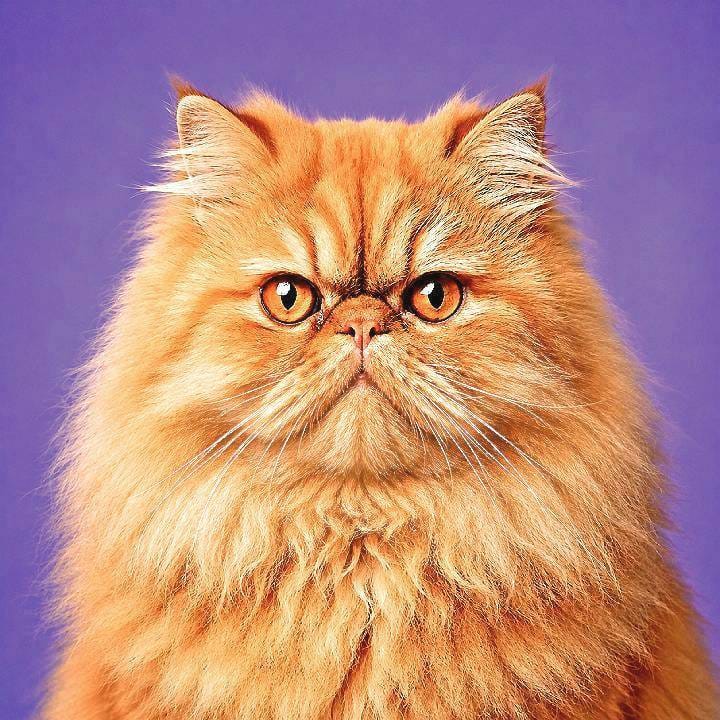
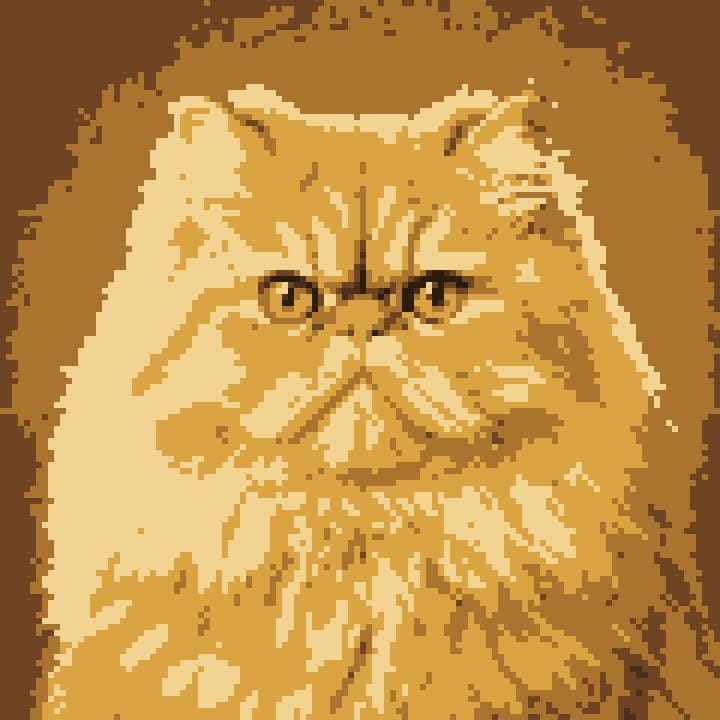
Persian cat photo before conversion to pixel art
Original
Persian cat converted to pixel art with smooth sampling and a sepia palette
Smooth
Persian cat converted to pixel art with sharp sampling and a sepia palette
Sharp

Frequently Asked Questions

An image to pixel art converter is a tool that you can use to transform any image into pixel art. The result is a highly stylized image made of large, visible colored square blocks, similar to the graphics found in classic video games.

Yes. If the image has enough contrast and clear subjects (portrait, landscape, or logo) then it will work well. Busy or low-contrast images will look muddy when pixelated. So simplifying the image before pixelating or increasing the contrast can help.

Sharp sampling selects colors with no blending, giving you a crisper, more graphic result. Smooth sampling first blends the colors of neighboring pixels, which results in softer transitions between colors, somewhat blurring the image and giving it an antialiased look.

The Colors slider uses color quantization to reduce the image to a given palette size, independent from the chosen retro style. A lower number of colors results in a more stylized, poster-like image while a higher number of colors results in an image that is more similar to the original photo.

They modify the source image before it’s pixelated, the same kind of sliders you would find in a basic photo-editing application. Increasing the contrast or saturation before pixelation can result in an image that is clearer when shrunk down to a small pixel size, since the fine tonal detail gets lost in the downsampling anyway.

It draws thin lines between each pixel block, allowing you to clearly see the underlying grid structure. This can be very useful for artists looking to re-create art by hand in a sprite editor and for viewing the exact boundaries of pixels in a piece of art.

No. All the image processing happens locally in your browser using HTML canvas and your photo never leaves your device or gets sent to a server. Upload an image, play with settings like pixel size, color map, and sampling method. Then download the converted pixel art in the desired size and format.

You can choose from 4 different options: Small (actual pixel grid at true size – no upscaling), Medium and Large (upscaled versions) and Original (upscaled to the exact resolution of your uploaded photo).

You can export your images as PNG, JPEG, or WebP.